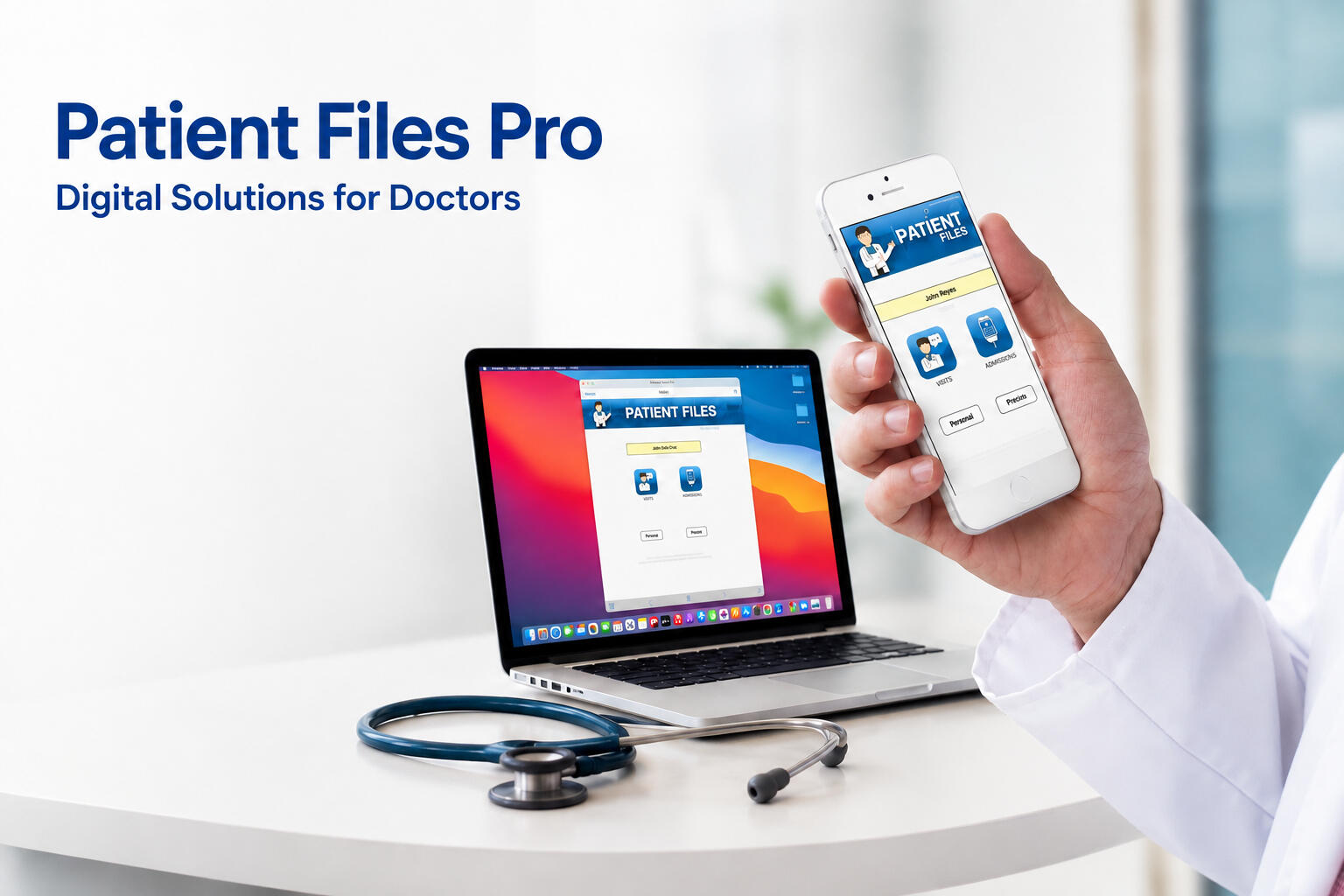
Your Clinic, Digitized: Patient Records & Print Prescriptions on Mac, iPad, or iPhone!
Start by downloading our Patient Files App from the App Store — the direct download link is provided below.This website contains tutorial videos to help you get started. Use the navigation tabs above to explore different guides and features.What Can the Patient Files App Do?The app includes seven key features designed to support your medical practice:1. Patient Information Storage — for easy access anytime, anywhere
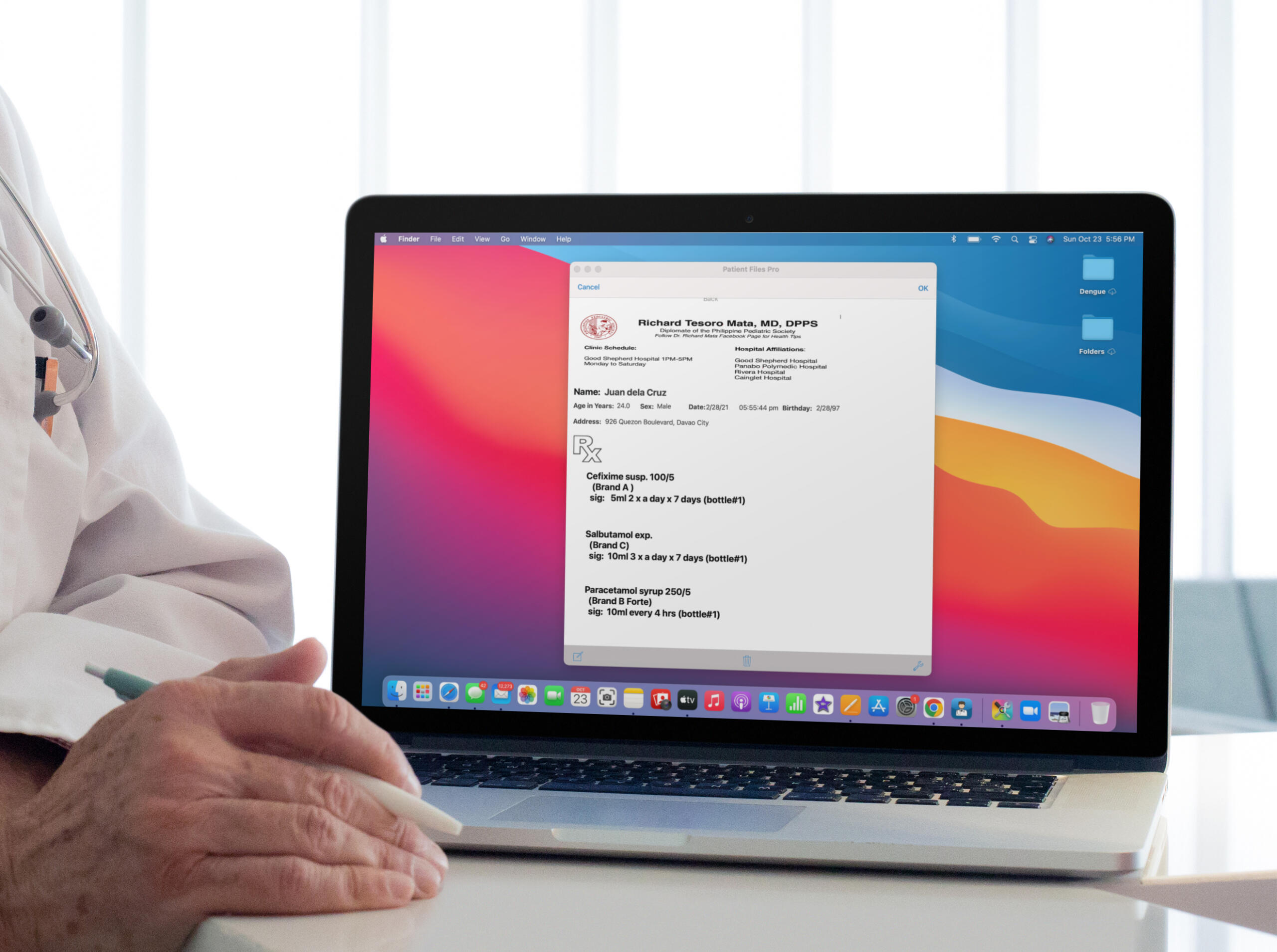
2. PDF Prescription Generator
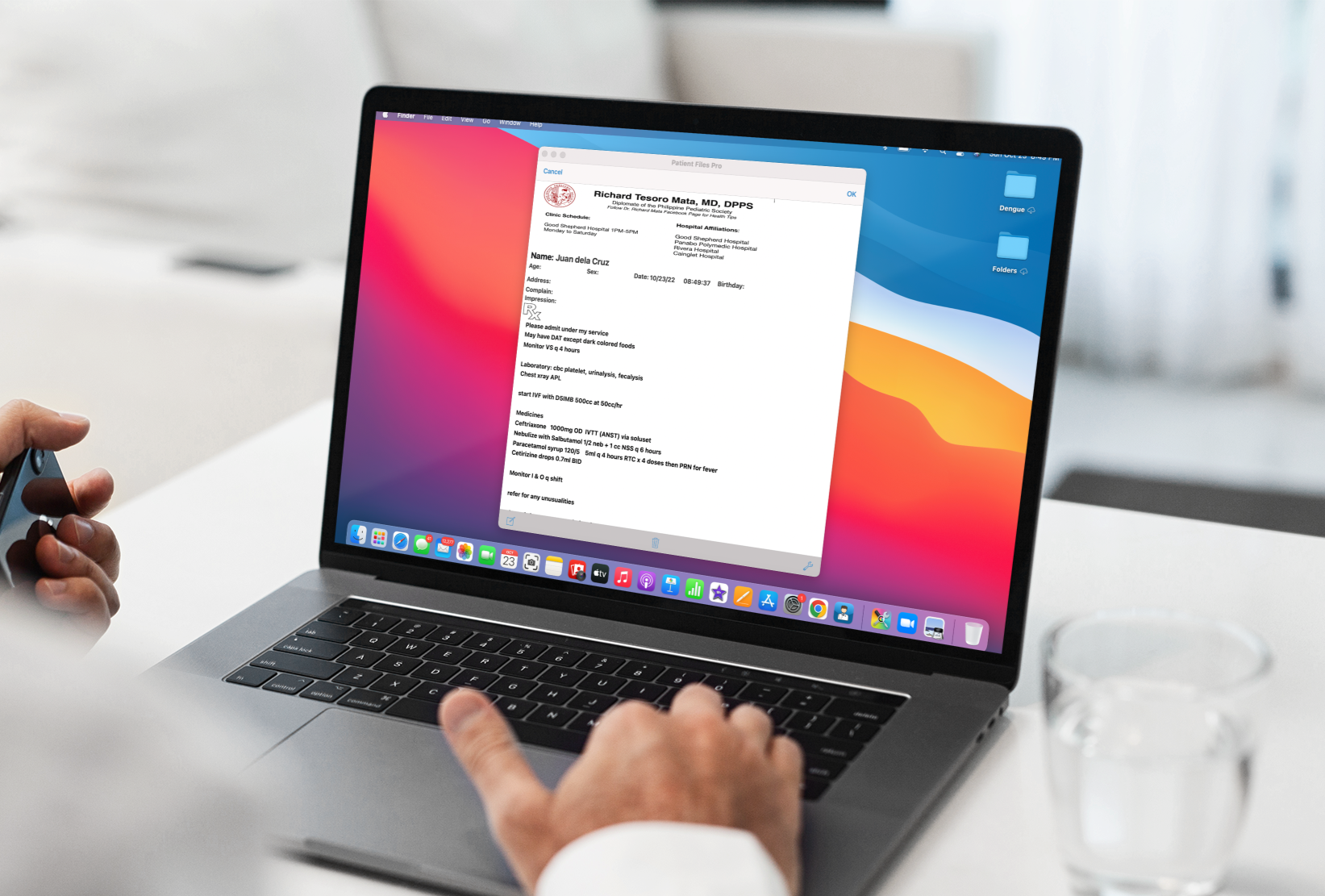
3. PDF Admitting Orders Creator
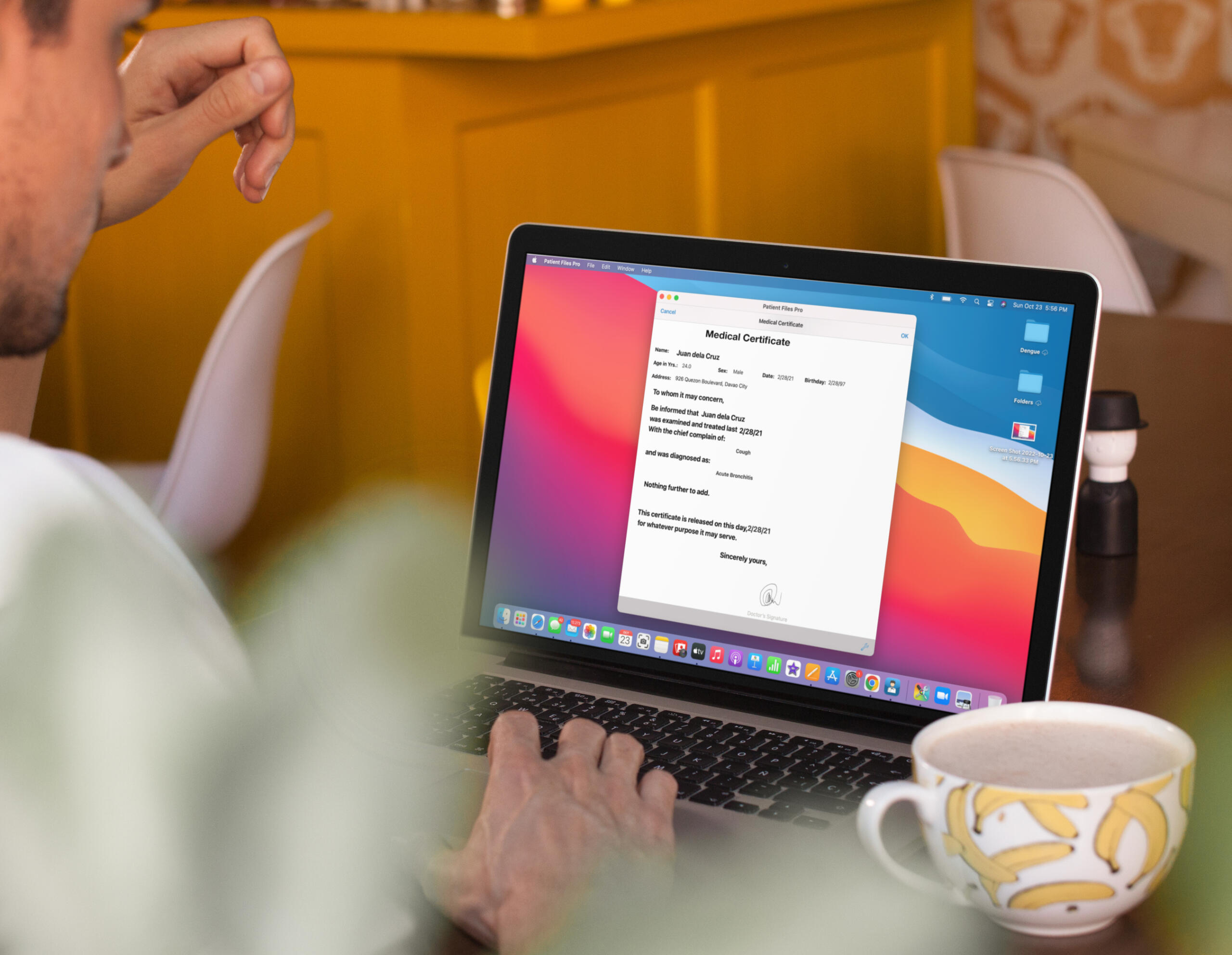
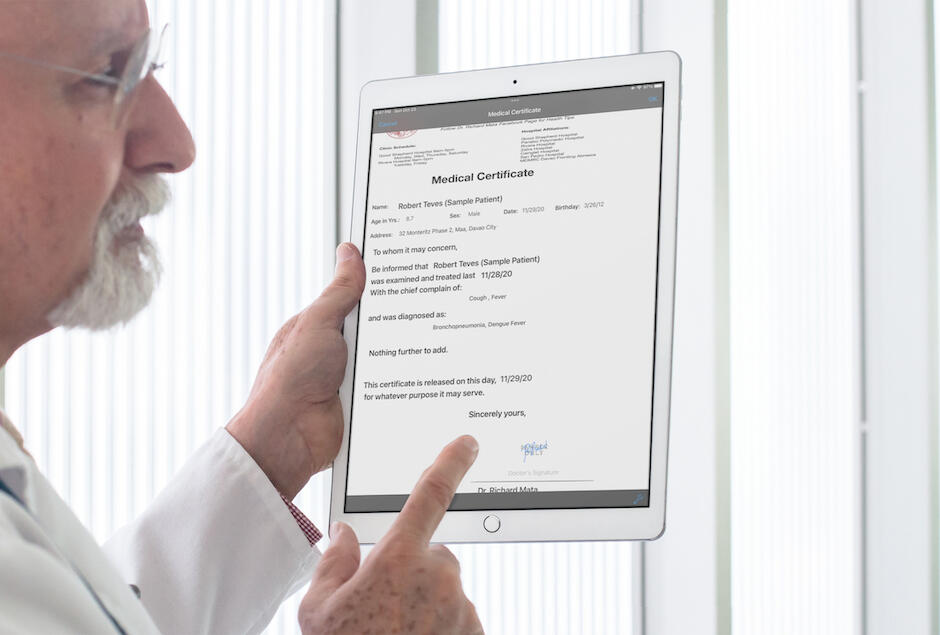
4. PDF Medical Certificate Generator
5. PDF Clinic Summary Generator
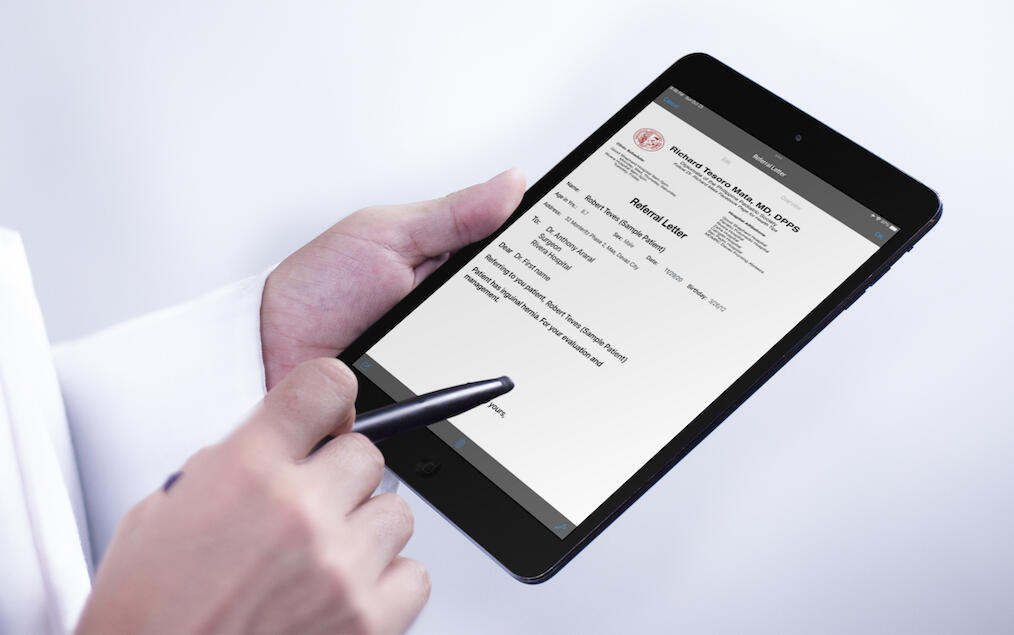
6. PDF Referral Letter Creator
7. PDF Vaccine Certificate GeneratorWhy PDF Format?PDF files are universal and easy to open on any device or app — including Viber, Messenger, or Email — and they’re simple to print.
Additionally, the FDA recommends electronic prescriptions in formats such as PDF, JPEG, or other image-based files.Printing OptionsYou can use the Patient Files App on:
• Mac (with M1 chip and above): Compatible with any printer
• iPad or iPhone: For printing use any known wireless Printers. Watch the tutorial videos here to learn how.
Click the Download Buttons below to give it a try.
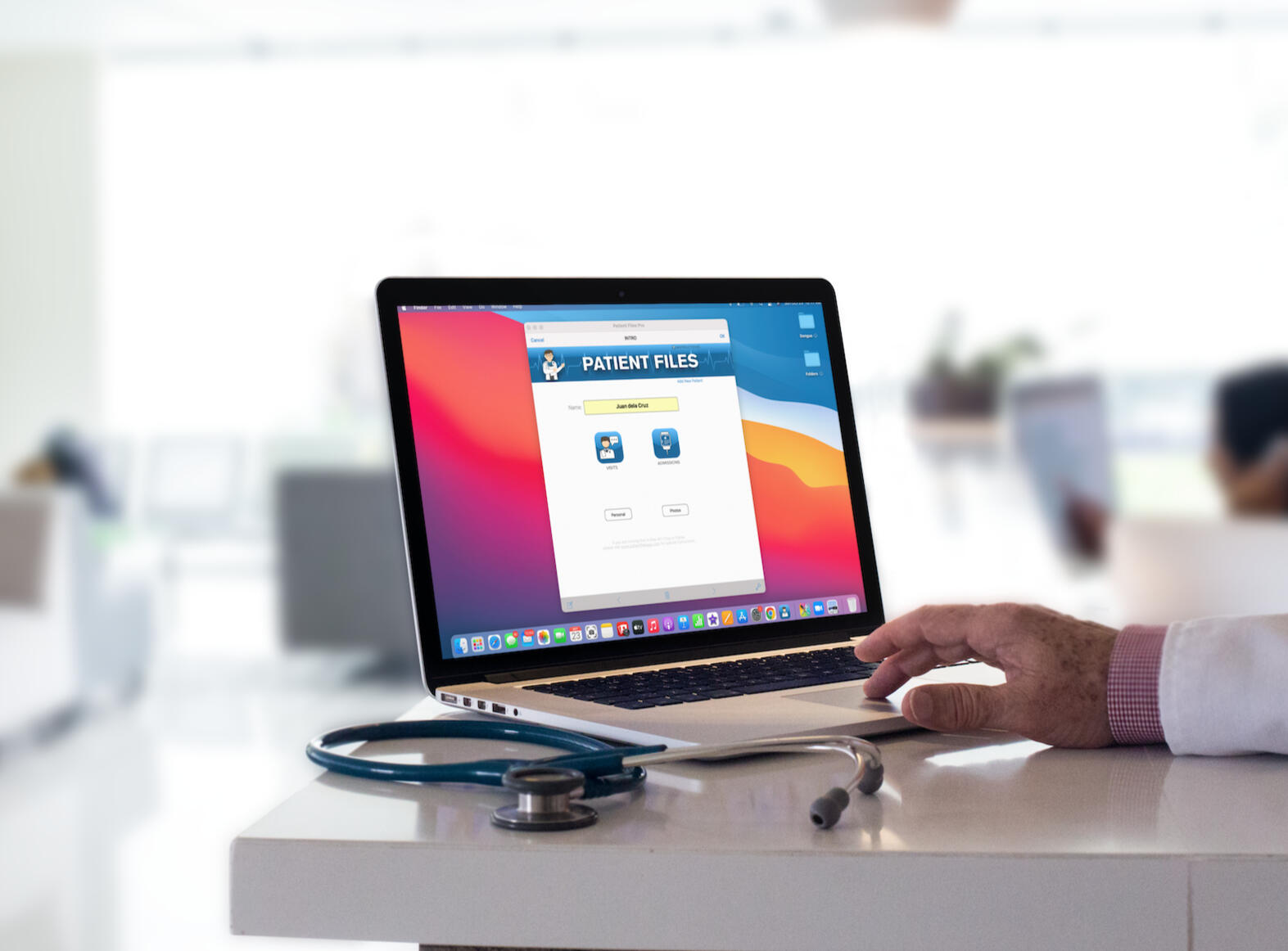
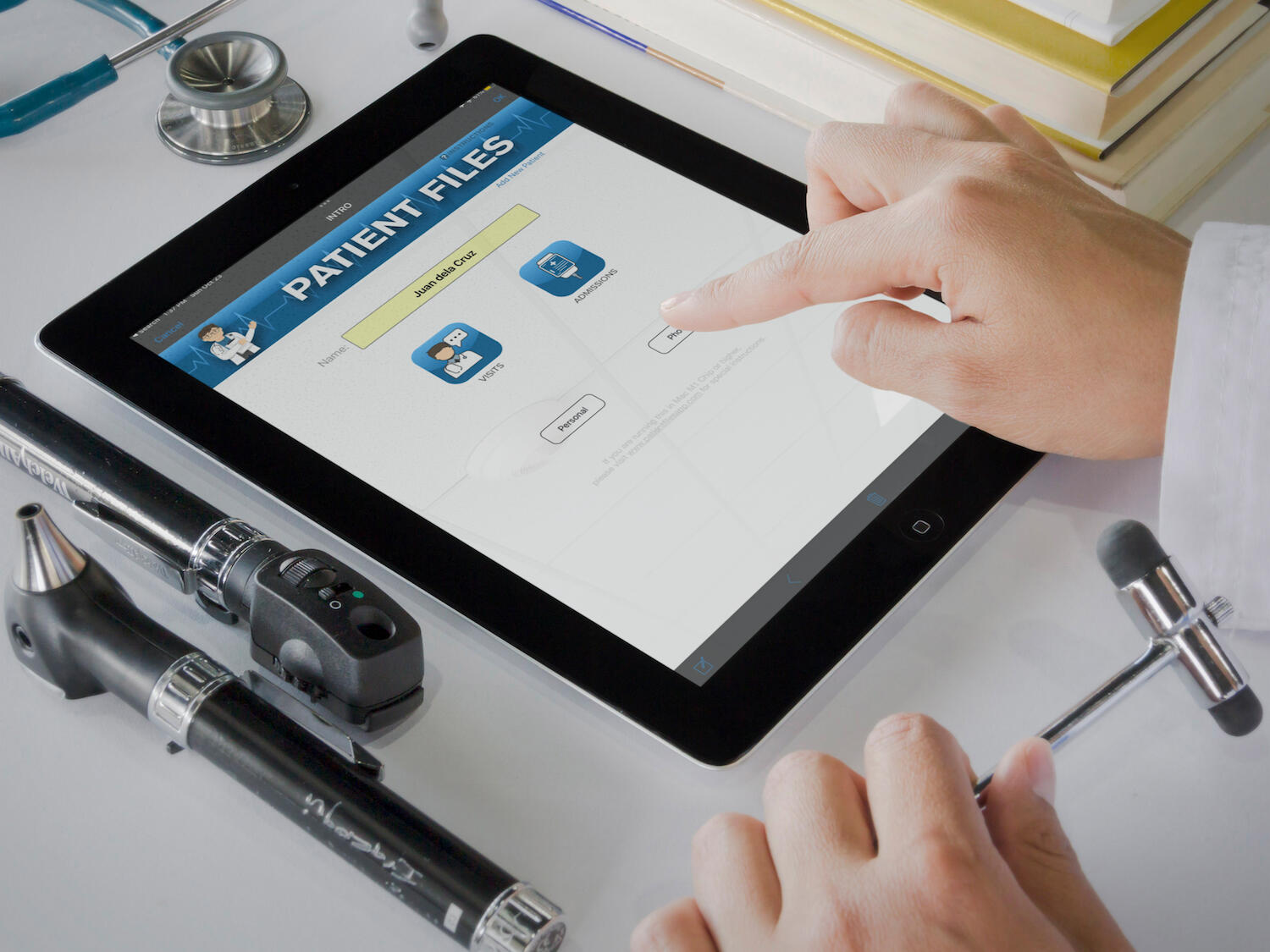
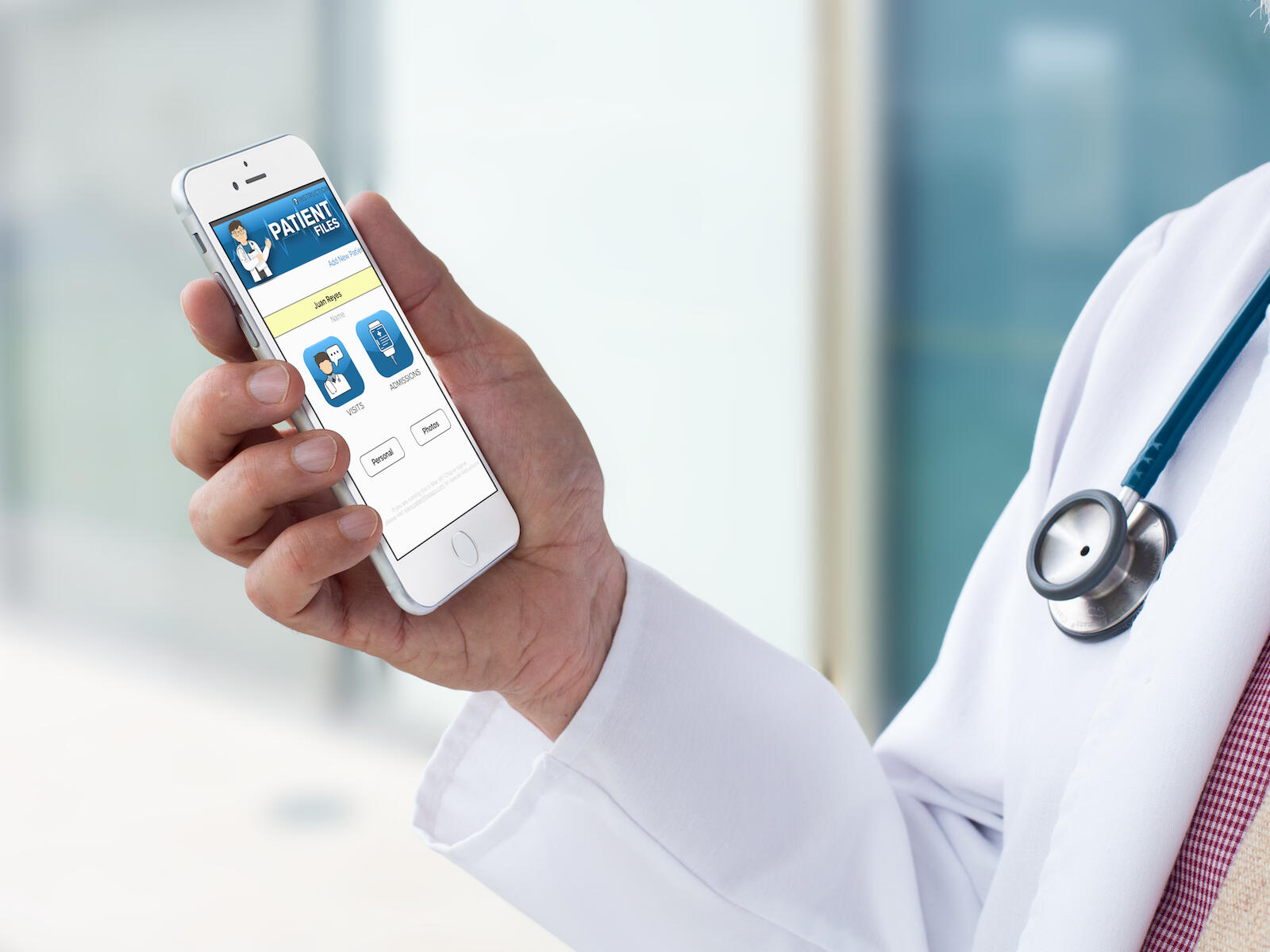
Below are Photos of How it Looks Like in the 3 Different Devices: Mac, iPad and iPhone:
Mac M1 or M2 Chip:
iPad:
iPhone:
Sample Videos:
How to Print a Prescription Using Mac M1 Chip
Note: The iPad version totally looks the same as the Mac M1 version.
Text
How to make a PDF Prescription is Made via iPhone
In this example, it was sent via Email to the patient.
How to Add your own Rx Heading and Signature
You'll only need to do this once. Once done, you can then easily add your Heading and Signature in your prescriptions or certificates in just one click.
Once you understand the 3 videos above, all the other functions of the App will be self explanatory.
Below are Photos of the PDF Outputs of the App that is ready to be sent online or be printed. All done with just a few taps:
Medical Certificate (Mac M1)
Prescription (Mac M1)
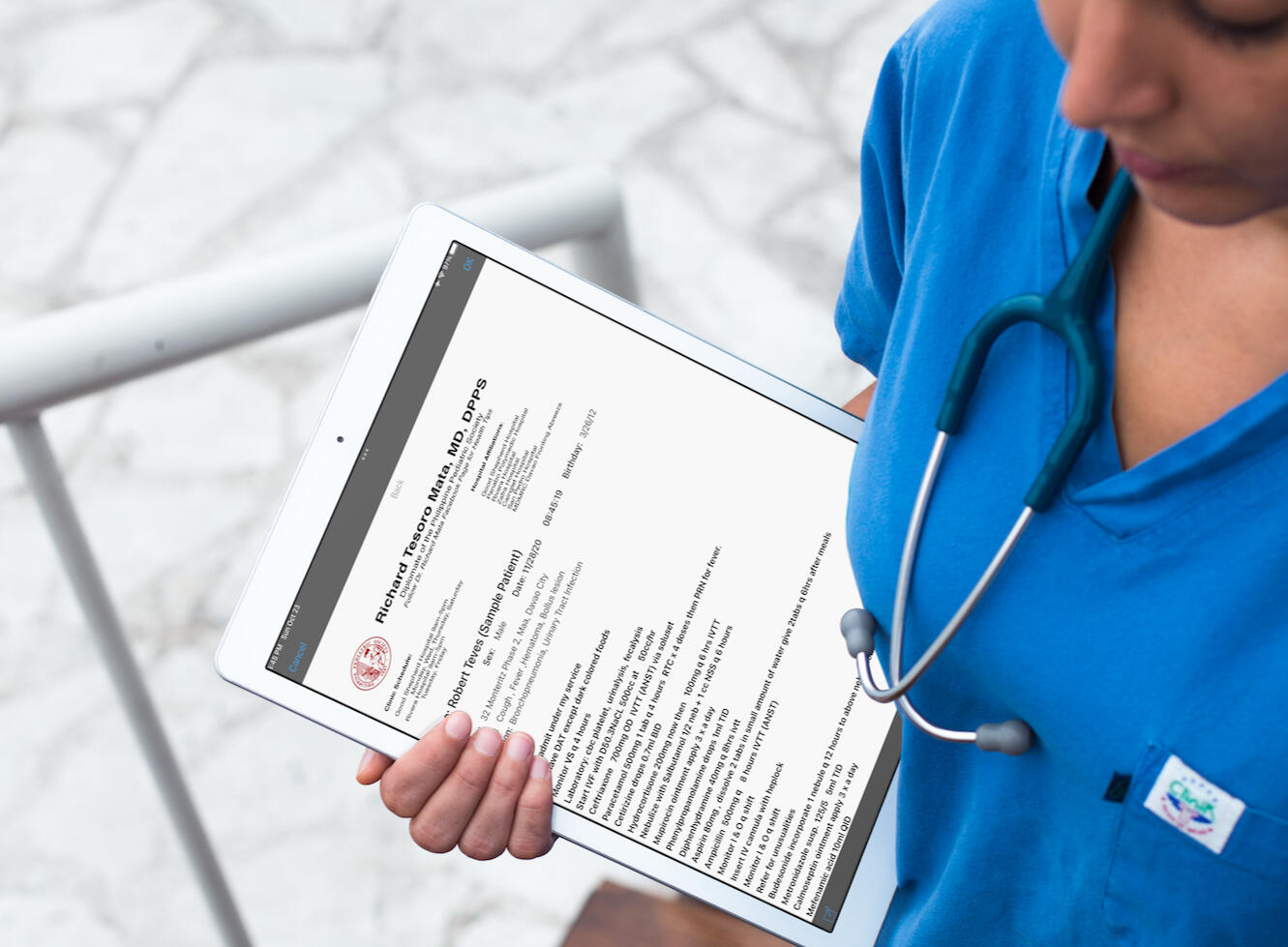
Admitting Orders (Mac M1)
Prescription (iPhone)
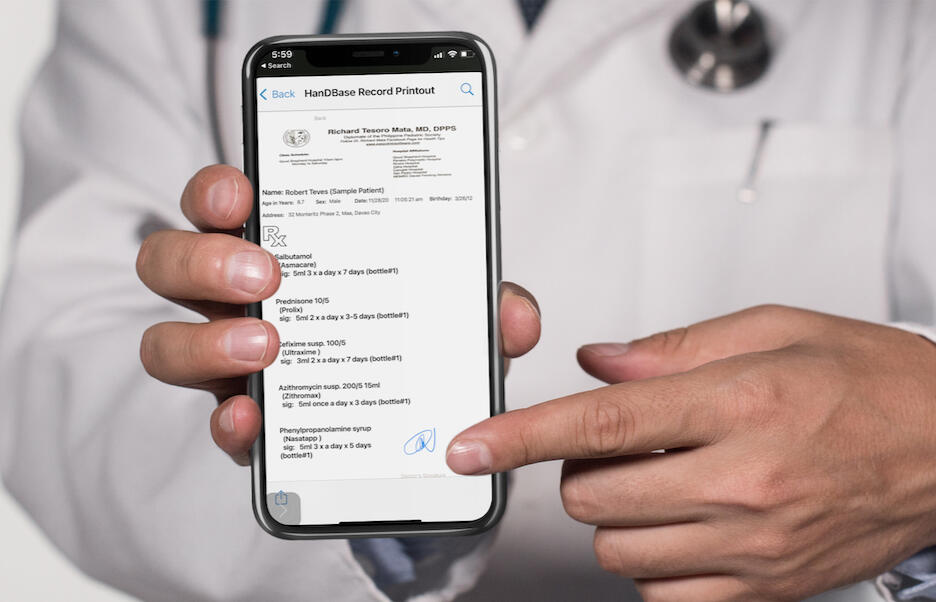
Medical Certificate (iPhone)
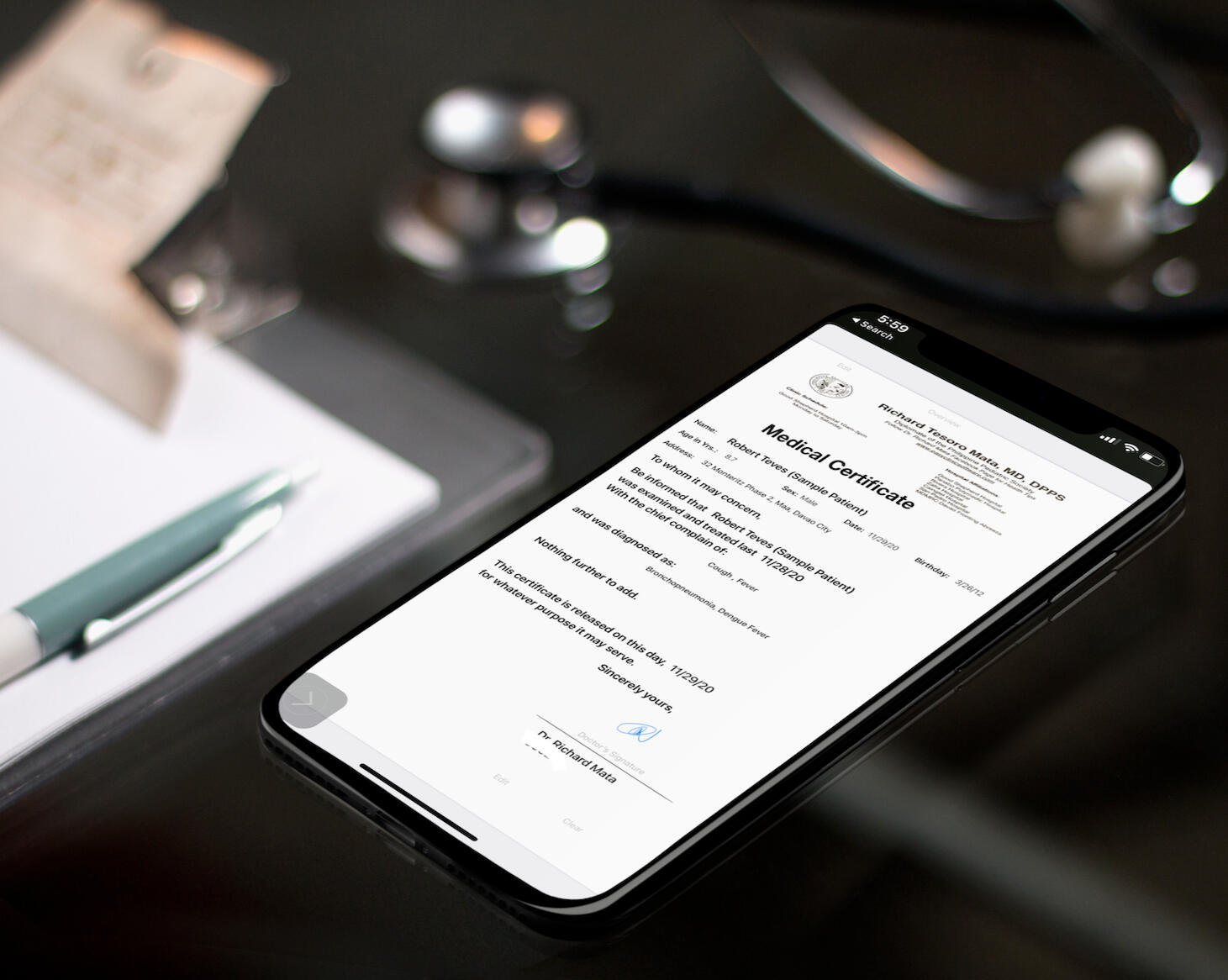
Admitting Orders (iPhone)
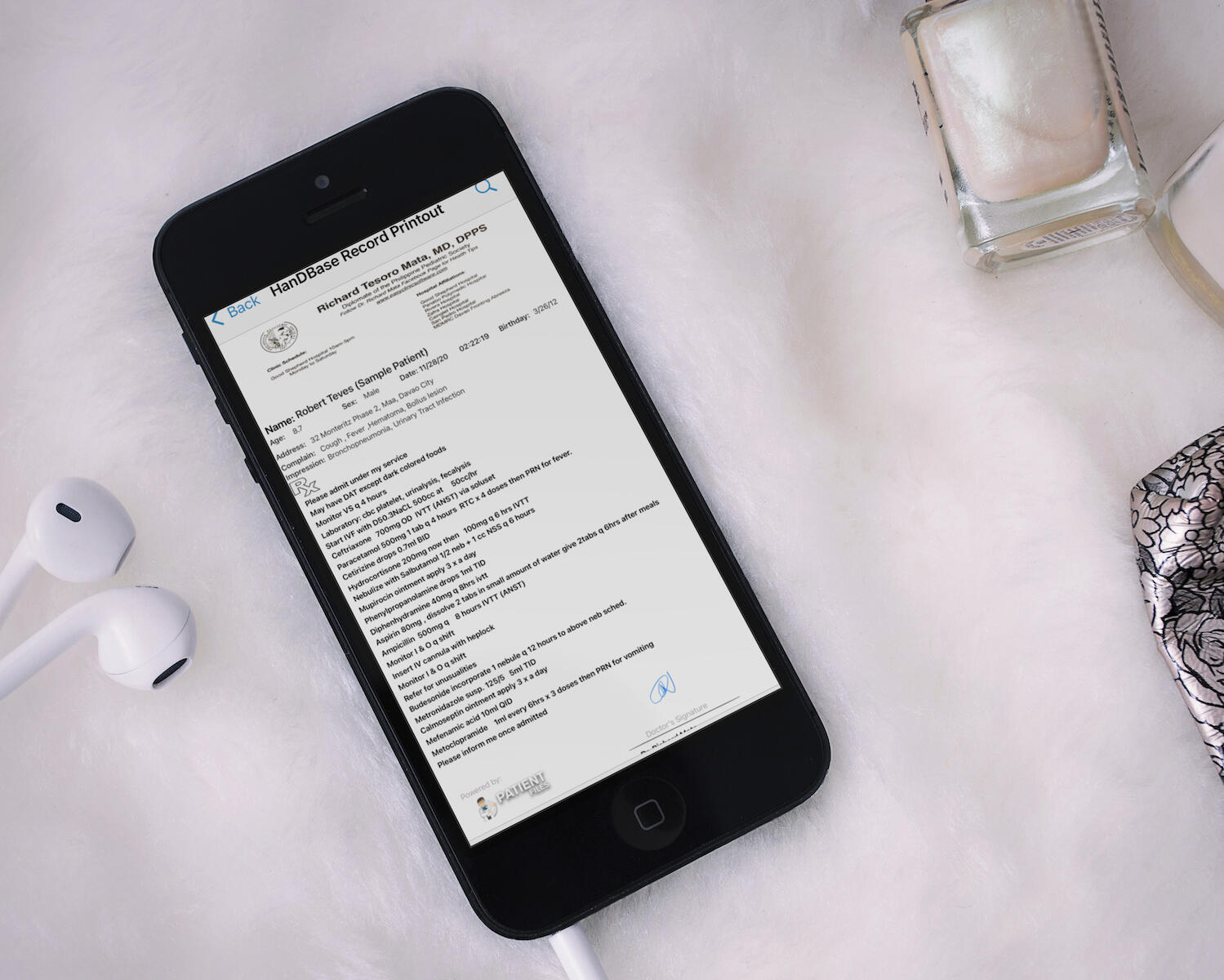
Prescription (iPad)
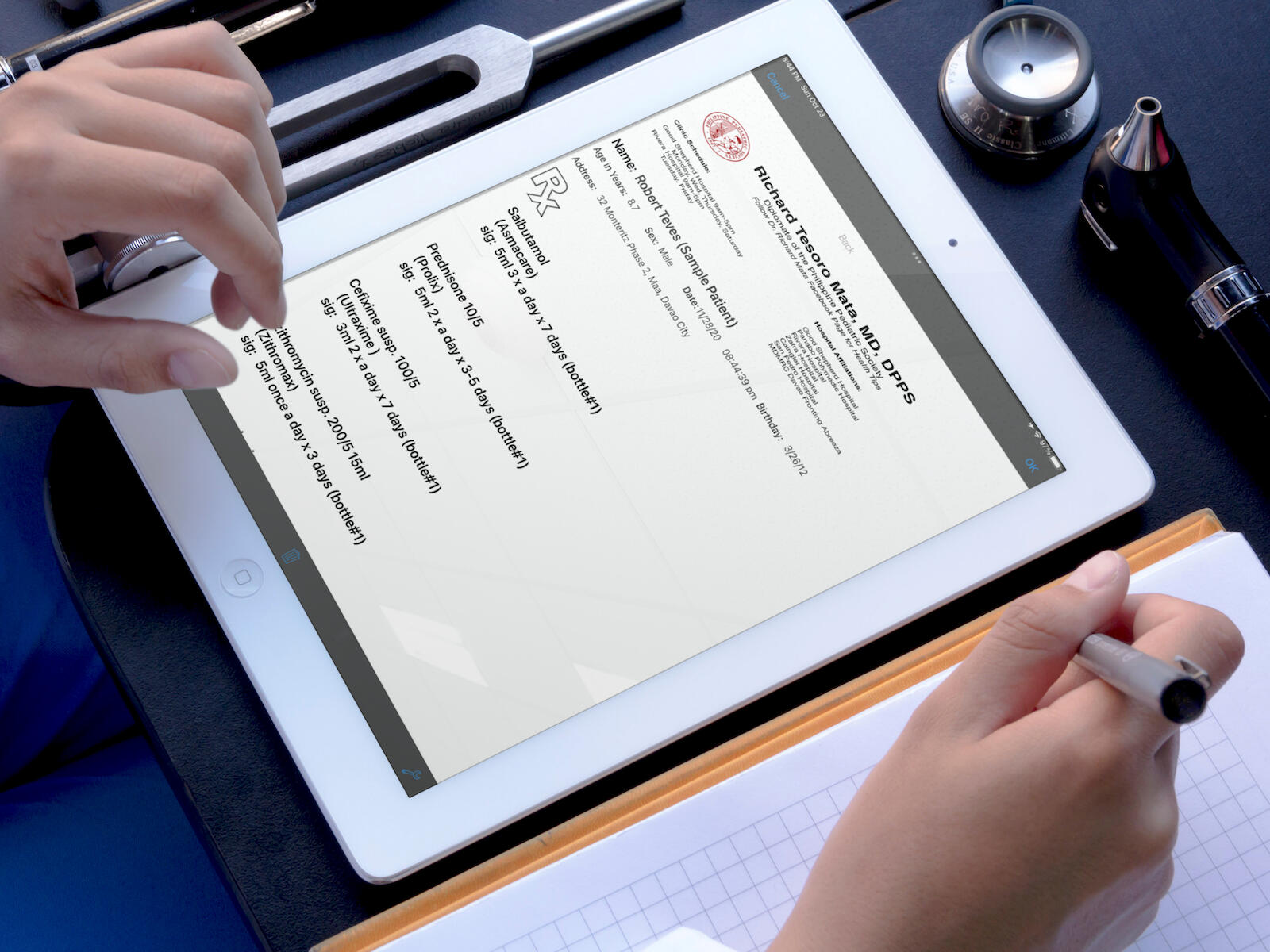
Admitting Orders (iPad)
Medical Certificate (iPad)
Referral Letter (iPad)
© Patient Files. All rights reserved.

Text
Text
Contact Us
Get in TouchWe welcome inquiries regarding ESM Health and Wellness Corporation, our products, digital health solutions, partnerships, and other corporate matters.ESM Health and Wellness CorporationLocation
21, Schubert st., Phase 2, Monteritz, Magtuod, Talomo, Davao City 8000, PhilippinesGeneral Inquiries
[email protected]Website
www.esmhealthandwellness.comProduct InquiriesFor questions regarding Colostrimune®, product authenticity, authorized sellers, or distribution inquiries, please contact us through our official communication channels.Patient Files ProFor information about our digital solution for doctors, visit:www.patientfilesapp.comBusiness & Partnership InquiriesFor corporate partnerships, distribution, institutional collaborations, or other business matters:[email protected]
Please follow our Facebook Page. You can message us there. Click here:
Frequently Asked Questions:
The iPhone, the iPad and Mac M1 versions functions just the same with some slight differences which you will see in the videos below:
iPhone and iPad videos:
How to Add your own Rx Heading and Signature
How to prepare your heading image, digital signature, name and license beforehand:
How to make a Prescription and Send it Online:
Another Approach of Sending Rx Online:
Saving the Rx first in a Folder before attaching to an email, viber or messenger. This approach is used if you want to attach more than one Rx to an email, viber or messenger.
How to make a Prescription and Print it via Wifi Printer:
How to Add a New Prescription of an old Patient who is already in the database:
How to edit the Popup Drug list:
How to do a backup via Email.
What is the Fetch Info Button?
What is the Duplicate and Link to another patient's name button?
How to Make a Medical Certificate
How to Make a Clinical Summary
How to Make Vaccine Certificate
How to Make a Referral Letter
How to Make an Admitting Order
How to Edit the Popup Databases:
How to Add a Photo of the Patient's Lab Results:
How to Setup the HP Wifi Printer to Make it Print Well in a standard sized Rx Paper:
How to Print a Prescription using Patient Files Pro on Mac M1 Chip:
How to send a PDF Prescription Online using Mac M1 Chip:
How to Make a Rx Heading and Signature for Mac:
Windows Patient Files Instructions:
How to Install Patient Files for PC
How to prepare your heading image, digital signature, name and license beforehand:Alternatively, you can create a heading using Pages App just do a screenshot and crop and save to Photos.-Once the image is ready, tap the Heading Button in this database,Tap Photos, tap your Heading image in Photos then tap Select and then tap Select again.How to prepare an image of your Signature beforehand:Just open the Notes App and write with your finger or Apple Pen your signature and then do a screenshot and make a square crop and save image to Photos.Alternatively, you may write your signature in a clean white blank paper.Take a scan using the scan feature of Notes App.Crop it to be a square and save the image to Photos app.-Once the image is ready, tap the Signature Button, Tap Photos, tap your Signature image in Photos then tap Select and then Select again.
How to make a Prescription and Print it via Wifi Printer:
How to prepare your heading image, digital signature, name and license beforehand:Alternatively, you can create a heading using Pages App just do a screenshot and crop and save to Photos.-Once the image is ready, tap the Heading Button in this database,Tap Photos, tap your Heading image in Photos then tap Select and then tap Select again.How to prepare an image of your Signature beforehand:Just open the Notes App and write with your finger or Apple Pen your signature and then do a screenshot and make a square crop and save image to Photos.Alternatively, you may write your signature in a clean white blank paper.Take a scan using the scan feature of Notes App.Crop it to be a square and save the image to Photos app.-Once the image is ready, tap the Signature Button, Tap Photos, tap your Signature image in Photos then tap Select and then Select again.
How to Add a New Prescription of an old Patient who is already in the database:
How to prepare an image of your Signature beforehand:Take a scan using the scan feature of Notes App.Crop it to be a square and save the image to Photos app.-Once the image is ready, tap the Signature Button, Tap Photos, tap your Signature image in Photos then tap Select and then Select again.
How to edit the Popup Drug list:
How to prepare an image of your Signature beforehand:Take a scan using the scan feature of Notes App.Crop it to be a square and save the image to Photos app.-Once the image is ready, tap the Signature Button, Tap Photos, tap your Signature image in Photos then tap Select and then Select again.
How to do a backup via Email.
How to prepare an image of your Signature beforehand:Take a scan using the scan feature of Notes App.Crop it to be a square and save the image to Photos app.-Once the image is ready, tap the Signature Button, Tap Photos, tap your Signature image in Photos then tap Select and then Select again.
What is the Fetch Info Button?
How to prepare an image of your Signature beforehand:Take a scan using the scan feature of Notes App.Crop it to be a square and save the image to Photos app.-Once the image is ready, tap the Signature Button, Tap Photos, tap your Signature image in Photos then tap Select and then Select again.
What is the Duplicate and Link to another patient's name button?
How to prepare an image of your Signature beforehand:Take a scan using the scan feature of Notes App.Crop it to be a square and save the image to Photos app.-Once the image is ready, tap the Signature Button, Tap Photos, tap your Signature image in Photos then tap Select and then Select again.
Heading and Signature Button
How to Add your own Rx Heading and Signature
How to prepare your heading image, digital signature, name and license beforehand:Alternatively, you can create a heading using Pages App just do a screenshot and crop and save to Photos.-Once the image is ready, tap the Heading Button in this database,Tap Photos, tap your Heading image in Photos then tap Select and then tap Select again.How to prepare an image of your Signature beforehand:Just open the Notes App and write with your finger or Apple Pen your signature and then do a screenshot and make a square crop and save image to Photos.Alternatively, you may write your signature in a clean white blank paper.Take a scan using the scan feature of Notes App.Crop it to be a square and save the image to Photos app.-Once the image is ready, tap the Signature Button, Tap Photos, tap your Signature image in Photos then tap Select and then Select again.
How to Make a Medical Certificate
How to prepare your heading image, digital signature, name and license beforehand:Alternatively, you can create a heading using Pages App just do a screenshot and crop and save to Photos.-Once the image is ready, tap the Heading Button in this database,Tap Photos, tap your Heading image in Photos then tap Select and then tap Select again.How to prepare an image of your Signature beforehand:Just open the Notes App and write with your finger or Apple Pen your signature and then do a screenshot and make a square crop and save image to Photos.Alternatively, you may write your signature in a clean white blank paper.Take a scan using the scan feature of Notes App.Crop it to be a square and save the image to Photos app.-Once the image is ready, tap the Signature Button, Tap Photos, tap your Signature image in Photos then tap Select and then Select again.
How to Make a Clinical Summary
How to prepare your heading image, digital signature, name and license beforehand:Alternatively, you can create a heading using Pages App just do a screenshot and crop and save to Photos.-Once the image is ready, tap the Heading Button in this database,Tap Photos, tap your Heading image in Photos then tap Select and then tap Select again.How to prepare an image of your Signature beforehand:Just open the Notes App and write with your finger or Apple Pen your signature and then do a screenshot and make a square crop and save image to Photos.Alternatively, you may write your signature in a clean white blank paper.Take a scan using the scan feature of Notes App.Crop it to be a square and save the image to Photos app.-Once the image is ready, tap the Signature Button, Tap Photos, tap your Signature image in Photos then tap Select and then Select again.
How to Make Vaccine Certificate
How to prepare your heading image, digital signature, name and license beforehand:Alternatively, you can create a heading using Pages App just do a screenshot and crop and save to Photos.-Once the image is ready, tap the Heading Button in this database,Tap Photos, tap your Heading image in Photos then tap Select and then tap Select again.How to prepare an image of your Signature beforehand:Just open the Notes App and write with your finger or Apple Pen your signature and then do a screenshot and make a square crop and save image to Photos.Alternatively, you may write your signature in a clean white blank paper.Take a scan using the scan feature of Notes App.Crop it to be a square and save the image to Photos app.-Once the image is ready, tap the Signature Button, Tap Photos, tap your Signature image in Photos then tap Select and then Select again.
How to Make a Referral Letter
How to prepare your heading image, digital signature, name and license beforehand:Alternatively, you can create a heading using Pages App just do a screenshot and crop and save to Photos.-Once the image is ready, tap the Heading Button in this database,Tap Photos, tap your Heading image in Photos then tap Select and then tap Select again.How to prepare an image of your Signature beforehand:Just open the Notes App and write with your finger or Apple Pen your signature and then do a screenshot and make a square crop and save image to Photos.Alternatively, you may write your signature in a clean white blank paper.Take a scan using the scan feature of Notes App.Crop it to be a square and save the image to Photos app.-Once the image is ready, tap the Signature Button, Tap Photos, tap your Signature image in Photos then tap Select and then Select again.
How to Make an Admitting Order
How to prepare your heading image, digital signature, name and license beforehand:Alternatively, you can create a heading using Pages App just do a screenshot and crop and save to Photos.-Once the image is ready, tap the Heading Button in this database,Tap Photos, tap your Heading image in Photos then tap Select and then tap Select again.How to prepare an image of your Signature beforehand:Just open the Notes App and write with your finger or Apple Pen your signature and then do a screenshot and make a square crop and save image to Photos.Alternatively, you may write your signature in a clean white blank paper.Take a scan using the scan feature of Notes App.Crop it to be a square and save the image to Photos app.-Once the image is ready, tap the Signature Button, Tap Photos, tap your Signature image in Photos then tap Select and then Select again.
How to Edit the Popup Databases:
How to prepare your heading image, digital signature, name and license beforehand:Alternatively, you can create a heading using Pages App just do a screenshot and crop and save to Photos.-Once the image is ready, tap the Heading Button in this database,Tap Photos, tap your Heading image in Photos then tap Select and then tap Select again.How to prepare an image of your Signature beforehand:Just open the Notes App and write with your finger or Apple Pen your signature and then do a screenshot and make a square crop and save image to Photos.Alternatively, you may write your signature in a clean white blank paper.Take a scan using the scan feature of Notes App.Crop it to be a square and save the image to Photos app.-Once the image is ready, tap the Signature Button, Tap Photos, tap your Signature image in Photos then tap Select and then Select again.
How to Add a Photo of the Patient's Lab Results:
How to prepare your heading image, digital signature, name and license beforehand:Alternatively, you can create a heading using Pages App just do a screenshot and crop and save to Photos.-Once the image is ready, tap the Heading Button in this database,Tap Photos, tap your Heading image in Photos then tap Select and then tap Select again.How to prepare an image of your Signature beforehand:Just open the Notes App and write with your finger or Apple Pen your signature and then do a screenshot and make a square crop and save image to Photos.Alternatively, you may write your signature in a clean white blank paper.Take a scan using the scan feature of Notes App.Crop it to be a square and save the image to Photos app.-Once the image is ready, tap the Signature Button, Tap Photos, tap your Signature image in Photos then tap Select and then Select again.
How to Setup the HP Wifi Printer to Make it Print Well in a standard sized Rx Paper:
How to prepare your heading image, digital signature, name and license beforehand:Alternatively, you can create a heading using Pages App just do a screenshot and crop and save to Photos.-Once the image is ready, tap the Heading Button in this database,Tap Photos, tap your Heading image in Photos then tap Select and then tap Select again.How to prepare an image of your Signature beforehand:Just open the Notes App and write with your finger or Apple Pen your signature and then do a screenshot and make a square crop and save image to Photos.Alternatively, you may write your signature in a clean white blank paper.Take a scan using the scan feature of Notes App.Crop it to be a square and save the image to Photos app.-Once the image is ready, tap the Signature Button, Tap Photos, tap your Signature image in Photos then tap Select and then Select again.
Mac M1 Demo Instructions:
How to make a Prescription and Send it Online:
How to prepare your heading image, digital signature, name and license beforehand:Alternatively, you can create a heading using Pages App just do a screenshot and crop and save to Photos.-Once the image is ready, tap the Heading Button in this database,Tap Photos, tap your Heading image in Photos then tap Select and then tap Select again.How to prepare an image of your Signature beforehand:Just open the Notes App and write with your finger or Apple Pen your signature and then do a screenshot and make a square crop and save image to Photos.Alternatively, you may write your signature in a clean white blank paper.Take a scan using the scan feature of Notes App.Crop it to be a square and save the image to Photos app.-Once the image is ready, tap the Signature Button, Tap Photos, tap your Signature image in Photos then tap Select and then Select again.
How to make a Prescription and Print it via Wifi Printer:
How to prepare your heading image, digital signature, name and license beforehand:Alternatively, you can create a heading using Pages App just do a screenshot and crop and save to Photos.-Once the image is ready, tap the Heading Button in this database,Tap Photos, tap your Heading image in Photos then tap Select and then tap Select again.How to prepare an image of your Signature beforehand:Just open the Notes App and write with your finger or Apple Pen your signature and then do a screenshot and make a square crop and save image to Photos.Alternatively, you may write your signature in a clean white blank paper.Take a scan using the scan feature of Notes App.Crop it to be a square and save the image to Photos app.-Once the image is ready, tap the Signature Button, Tap Photos, tap your Signature image in Photos then tap Select and then Select again.
How to Add a New Prescription of an old Patient who is already in the database:
How to prepare your heading image, digital signature, name and license beforehand:Alternatively, you can create a heading using Pages App just do a screenshot and crop and save to Photos.-Once the image is ready, tap the Heading Button in this database,Tap Photos, tap your Heading image in Photos then tap Select and then tap Select again.How to prepare an image of your Signature beforehand:Just open the Notes App and write with your finger or Apple Pen your signature and then do a screenshot and make a square crop and save image to Photos.Alternatively, you may write your signature in a clean white blank paper.Take a scan using the scan feature of Notes App.Crop it to be a square and save the image to Photos app.-Once the image is ready, tap the Signature Button, Tap Photos, tap your Signature image in Photos then tap Select and then Select again.
How to edit the Popup Drug list:
How to prepare your heading image, digital signature, name and license beforehand:Alternatively, you can create a heading using Pages App just do a screenshot and crop and save to Photos.-Once the image is ready, tap the Heading Button in this database,Tap Photos, tap your Heading image in Photos then tap Select and then tap Select again.How to prepare an image of your Signature beforehand:Just open the Notes App and write with your finger or Apple Pen your signature and then do a screenshot and make a square crop and save image to Photos.Alternatively, you may write your signature in a clean white blank paper.Take a scan using the scan feature of Notes App.Crop it to be a square and save the image to Photos app.-Once the image is ready, tap the Signature Button, Tap Photos, tap your Signature image in Photos then tap Select and then Select again.
How to do a backup via Email.
How to prepare your heading image, digital signature, name and license beforehand:Alternatively, you can create a heading using Pages App just do a screenshot and crop and save to Photos.-Once the image is ready, tap the Heading Button in this database,Tap Photos, tap your Heading image in Photos then tap Select and then tap Select again.How to prepare an image of your Signature beforehand:Just open the Notes App and write with your finger or Apple Pen your signature and then do a screenshot and make a square crop and save image to Photos.Alternatively, you may write your signature in a clean white blank paper.Take a scan using the scan feature of Notes App.Crop it to be a square and save the image to Photos app.-Once the image is ready, tap the Signature Button, Tap Photos, tap your Signature image in Photos then tap Select and then Select again.
What is the Fetch Info Button?
How to prepare your heading image, digital signature, name and license beforehand:Alternatively, you can create a heading using Pages App just do a screenshot and crop and save to Photos.-Once the image is ready, tap the Heading Button in this database,Tap Photos, tap your Heading image in Photos then tap Select and then tap Select again.How to prepare an image of your Signature beforehand:Just open the Notes App and write with your finger or Apple Pen your signature and then do a screenshot and make a square crop and save image to Photos.Alternatively, you may write your signature in a clean white blank paper.Take a scan using the scan feature of Notes App.Crop it to be a square and save the image to Photos app.-Once the image is ready, tap the Signature Button, Tap Photos, tap your Signature image in Photos then tap Select and then Select again.
What is the Duplicate and Link to another patient's name button?
How to prepare your heading image, digital signature, name and license beforehand:Alternatively, you can create a heading using Pages App just do a screenshot and crop and save to Photos.-Once the image is ready, tap the Heading Button in this database,Tap Photos, tap your Heading image in Photos then tap Select and then tap Select again.How to prepare an image of your Signature beforehand:Just open the Notes App and write with your finger or Apple Pen your signature and then do a screenshot and make a square crop and save image to Photos.Alternatively, you may write your signature in a clean white blank paper.Take a scan using the scan feature of Notes App.Crop it to be a square and save the image to Photos app.-Once the image is ready, tap the Signature Button, Tap Photos, tap your Signature image in Photos then tap Select and then Select again.
Heading and Signature Button
How to prepare your heading image, digital signature, name and license beforehand:Alternatively, you can create a heading using Pages App just do a screenshot and crop and save to Photos.-Once the image is ready, tap the Heading Button in this database,Tap Photos, tap your Heading image in Photos then tap Select and then tap Select again.How to prepare an image of your Signature beforehand:Just open the Notes App and write with your finger or Apple Pen your signature and then do a screenshot and make a square crop and save image to Photos.Alternatively, you may write your signature in a clean white blank paper.Take a scan using the scan feature of Notes App.Crop it to be a square and save the image to Photos app.-Once the image is ready, tap the Signature Button, Tap Photos, tap your Signature image in Photos then tap Select and then Select again.
How to Add your own Rx Heading and Signature
How to prepare your heading image, digital signature, name and license beforehand:Alternatively, you can create a heading using Pages App just do a screenshot and crop and save to Photos.-Once the image is ready, tap the Heading Button in this database,Tap Photos, tap your Heading image in Photos then tap Select and then tap Select again.How to prepare an image of your Signature beforehand:Just open the Notes App and write with your finger or Apple Pen your signature and then do a screenshot and make a square crop and save image to Photos.Alternatively, you may write your signature in a clean white blank paper.Take a scan using the scan feature of Notes App.Crop it to be a square and save the image to Photos app.-Once the image is ready, tap the Signature Button, Tap Photos, tap your Signature image in Photos then tap Select and then Select again.
How to Make a Medical Certificate
How to prepare your heading image, digital signature, name and license beforehand:Alternatively, you can create a heading using Pages App just do a screenshot and crop and save to Photos.-Once the image is ready, tap the Heading Button in this database,Tap Photos, tap your Heading image in Photos then tap Select and then tap Select again.How to prepare an image of your Signature beforehand:Just open the Notes App and write with your finger or Apple Pen your signature and then do a screenshot and make a square crop and save image to Photos.Alternatively, you may write your signature in a clean white blank paper.Take a scan using the scan feature of Notes App.Crop it to be a square and save the image to Photos app.-Once the image is ready, tap the Signature Button, Tap Photos, tap your Signature image in Photos then tap Select and then Select again.
How to Make a Clinical Summary
How to prepare your heading image, digital signature, name and license beforehand:Alternatively, you can create a heading using Pages App just do a screenshot and crop and save to Photos.-Once the image is ready, tap the Heading Button in this database,Tap Photos, tap your Heading image in Photos then tap Select and then tap Select again.How to prepare an image of your Signature beforehand:Just open the Notes App and write with your finger or Apple Pen your signature and then do a screenshot and make a square crop and save image to Photos.Alternatively, you may write your signature in a clean white blank paper.Take a scan using the scan feature of Notes App.Crop it to be a square and save the image to Photos app.-Once the image is ready, tap the Signature Button, Tap Photos, tap your Signature image in Photos then tap Select and then Select again.
How to Make Vaccine Certificate
How to prepare your heading image, digital signature, name and license beforehand:Alternatively, you can create a heading using Pages App just do a screenshot and crop and save to Photos.-Once the image is ready, tap the Heading Button in this database,Tap Photos, tap your Heading image in Photos then tap Select and then tap Select again.How to prepare an image of your Signature beforehand:Just open the Notes App and write with your finger or Apple Pen your signature and then do a screenshot and make a square crop and save image to Photos.Alternatively, you may write your signature in a clean white blank paper.Take a scan using the scan feature of Notes App.Crop it to be a square and save the image to Photos app.-Once the image is ready, tap the Signature Button, Tap Photos, tap your Signature image in Photos then tap Select and then Select again.
How to Make a Referral Letter
How to prepare your heading image, digital signature, name and license beforehand:Alternatively, you can create a heading using Pages App just do a screenshot and crop and save to Photos.-Once the image is ready, tap the Heading Button in this database,Tap Photos, tap your Heading image in Photos then tap Select and then tap Select again.How to prepare an image of your Signature beforehand:Just open the Notes App and write with your finger or Apple Pen your signature and then do a screenshot and make a square crop and save image to Photos.Alternatively, you may write your signature in a clean white blank paper.Take a scan using the scan feature of Notes App.Crop it to be a square and save the image to Photos app.-Once the image is ready, tap the Signature Button, Tap Photos, tap your Signature image in Photos then tap Select and then Select again.
How to Make an Admitting Order
How to prepare your heading image, digital signature, name and license beforehand:Alternatively, you can create a heading using Pages App just do a screenshot and crop and save to Photos.-Once the image is ready, tap the Heading Button in this database,Tap Photos, tap your Heading image in Photos then tap Select and then tap Select again.How to prepare an image of your Signature beforehand:Just open the Notes App and write with your finger or Apple Pen your signature and then do a screenshot and make a square crop and save image to Photos.Alternatively, you may write your signature in a clean white blank paper.Take a scan using the scan feature of Notes App.Crop it to be a square and save the image to Photos app.-Once the image is ready, tap the Signature Button, Tap Photos, tap your Signature image in Photos then tap Select and then Select again.
How to Edit the Popup Databases:
How to prepare your heading image, digital signature, name and license beforehand:Alternatively, you can create a heading using Pages App just do a screenshot and crop and save to Photos.-Once the image is ready, tap the Heading Button in this database,Tap Photos, tap your Heading image in Photos then tap Select and then tap Select again.How to prepare an image of your Signature beforehand:Just open the Notes App and write with your finger or Apple Pen your signature and then do a screenshot and make a square crop and save image to Photos.Alternatively, you may write your signature in a clean white blank paper.Take a scan using the scan feature of Notes App.Crop it to be a square and save the image to Photos app.-Once the image is ready, tap the Signature Button, Tap Photos, tap your Signature image in Photos then tap Select and then Select again.
How to Add a Photo of the Patient's Lab Results:
How to prepare your heading image, digital signature, name and license beforehand:Alternatively, you can create a heading using Pages App just do a screenshot and crop and save to Photos.-Once the image is ready, tap the Heading Button in this database,Tap Photos, tap your Heading image in Photos then tap Select and then tap Select again.How to prepare an image of your Signature beforehand:Just open the Notes App and write with your finger or Apple Pen your signature and then do a screenshot and make a square crop and save image to Photos.Alternatively, you may write your signature in a clean white blank paper.Take a scan using the scan feature of Notes App.Crop it to be a square and save the image to Photos app.-Once the image is ready, tap the Signature Button, Tap Photos, tap your Signature image in Photos then tap Select and then Select again.
How to Setup the HP Wifi Printer to Make it Print Well in a standard sized Rx Paper:
How to prepare your heading image, digital signature, name and license beforehand:Alternatively, you can create a heading using Pages App just do a screenshot and crop and save to Photos.-Once the image is ready, tap the Heading Button in this database,Tap Photos, tap your Heading image in Photos then tap Select and then tap Select again.How to prepare an image of your Signature beforehand:Just open the Notes App and write with your finger or Apple Pen your signature and then do a screenshot and make a square crop and save image to Photos.Alternatively, you may write your signature in a clean white blank paper.Take a scan using the scan feature of Notes App.Crop it to be a square and save the image to Photos app.-Once the image is ready, tap the Signature Button, Tap Photos, tap your Signature image in Photos then tap Select and then Select again.
How to prepare your heading image, digital signature, name and license beforehand:Alternatively, you can create a heading using Pages App just do a screenshot and crop and save to Photos.-Once the image is ready, tap the Heading Button in this database,Tap Photos, tap your Heading image in Photos then tap Select and then tap Select again.How to prepare an image of your Signature beforehand:Just open the Notes App and write with your finger or Apple Pen your signature and then do a screenshot and make a square crop and save image to Photos.Alternatively, you may write your signature in a clean white blank paper.Take a scan using the scan feature of Notes App.Crop it to be a square and save the image to Photos app.-Once the image is ready, tap the Signature Button, Tap Photos, tap your Signature image in Photos then tap Select and then Select again.
How to prepare your heading image, digital signature, name and license beforehand:Alternatively, you can create a heading using Pages App just do a screenshot and crop and save to Photos.-Once the image is ready, tap the Heading Button in this database,Tap Photos, tap your Heading image in Photos then tap Select and then tap Select again.How to prepare an image of your Signature beforehand:Just open the Notes App and write with your finger or Apple Pen your signature and then do a screenshot and make a square crop and save image to Photos.Alternatively, you may write your signature in a clean white blank paper.Take a scan using the scan feature of Notes App.Crop it to be a square and save the image to Photos app.-Once the image is ready, tap the Signature Button, Tap Photos, tap your Signature image in Photos then tap Select and then Select again.
Privacy Policy
ESM Health and Wellness CorporationLast Updated: September 2, 2026ESM Health and Wellness Corporation (“ESM,” “Company,” “we,” “us,” or “our”) respects your privacy and is committed to protecting your personal information.This Privacy Policy explains how we collect, use, store, disclose, and protect personal information when you visit or interact with our website, www.esmhealthandwellness.com, communicate with us, or use services made available through our website.This Privacy Policy is intended to comply with applicable Philippine privacy laws, including Republic Act No. 10173, otherwise known as the Data Privacy Act of 2012, its Implementing Rules and Regulations, and applicable issuances of the National Privacy Commission (NPC).By using our website or voluntarily providing your personal information to us, you acknowledge the practices described in this Privacy Policy.⸻1. Who We AreESM Health and Wellness Corporation is a Philippine corporation engaged in health and wellness products and related activities.For purposes of applicable data privacy laws, ESM Health and Wellness Corporation is the Personal Information Controller with respect to personal information that it determines the purposes and means of processing.Website: www.esmhealthandwellness.com⸻2. Personal Information We May CollectDepending on how you interact with us, we may collect information such as:* Name
* Email address
* Mobile or telephone number
* Information contained in messages or inquiries sent to us
* Order- or transaction-related information when applicable
* Delivery or contact information when applicable
* Information voluntarily submitted through website forms or other communication channels
* Internet Protocol (IP) address
* Browser and device information
* Website activity and usage information
* Cookie identifiers and similar technical informationWe only seek to collect personal information that is reasonably necessary and relevant to legitimate business purposes.Please do not submit sensitive personal information or medical information through our website unless it is specifically requested and an appropriate method of collection has been provided.⸻3. Information Collected AutomaticallyWhen you visit our website, certain technical information may be collected automatically by our website platform or authorized service providers.This may include your IP address, browser type, device type, operating system, referring website, pages visited, date and time of access, approximate geographic information derived from technical data, and other website usage information.We may use this information to operate and secure the website, understand how visitors use it, identify technical problems, improve website performance, and evaluate the effectiveness of our content and marketing.⸻4. Cookies and Similar TechnologiesOur website may use cookies and similar technologies to provide website functionality, remember preferences, analyze website traffic and performance, maintain security, and, where applicable, measure advertising or marketing effectiveness.Some cookies may be placed by third-party services integrated with our website.You may control or disable cookies through your browser settings. However, disabling certain cookies may affect some features or functionality of the website.Where required by applicable law, we will obtain appropriate consent before using non-essential cookies or similar tracking technologies.⸻5. How We Use Personal InformationWe may process personal information for purposes including:* Operating, maintaining, securing, and improving our website;
* Responding to questions, messages, requests, and customer inquiries;
* Providing information about our products and services;
* Processing or facilitating transactions where applicable;
* Providing customer support and after-sales assistance;
* Communicating important information relating to products, orders, services, or website operations;
* Sending promotional or marketing communications when permitted by law or with appropriate consent;
* Understanding website usage and improving the user experience;
* Measuring the performance of our marketing and promotional activities;
* Detecting and preventing fraud, abuse, security incidents, or other unlawful activities;
* Maintaining business and transaction records;
* Complying with legal, regulatory, tax, accounting, and governmental requirements;
* Establishing, exercising, or defending legal claims; and
* Carrying out other legitimate business purposes consistent with the circumstances in which the information was collected.⸻6. Legal Basis for ProcessingWhere required by applicable law, we process personal information based on one or more lawful grounds, including:* Your consent;
* The performance of a contract or steps necessary before entering into a contract;
* Compliance with a legal obligation;
* Protection of legally recognized rights and interests;
* Protection of life and health where applicable; and
* Legitimate interests pursued by ESM Health and Wellness Corporation or a third party, provided that such interests do not override your fundamental privacy rights.When processing requires consent, you may withdraw your consent subject to applicable laws and any lawful grounds that may permit continued processing.⸻7. Online Stores and Third-Party PlatformsOur website may provide links or buttons that direct visitors to third-party platforms, including online marketplaces, social media platforms, payment services, or other external websites where ESM products may be available.When you leave our website and access a third-party platform, that platform may independently collect and process your personal information according to its own privacy policy and terms.ESM Health and Wellness Corporation does not control the privacy practices, security measures, or data-processing activities of independent third-party websites and platforms.We encourage you to review their respective privacy policies before providing personal information.⸻8. Social MediaESM Health and Wellness Corporation may maintain accounts or pages on social media and e-commerce platforms.When you communicate with us through these platforms, the platform provider may process information about you independently according to its own privacy policies.Information that you post publicly, including comments, reviews, testimonials, photographs, or other content, may be visible to other users depending on your privacy settings and the nature of the platform.⸻9. Disclosure of Personal InformationWe do not sell your personal information as a regular part of our business.We may disclose or provide access to personal information when reasonably necessary to:* Website hosting and technology providers;
* IT and cybersecurity providers;
* Analytics providers;
* Customer service providers;
* Logistics and fulfillment providers;
* Payment processors, when applicable;
* Professional advisers such as lawyers, accountants, auditors, and consultants;
* Marketing or advertising service providers, subject to applicable privacy requirements;
* Government agencies, courts, regulators, or law-enforcement authorities when required or permitted by law; and
* Potential successors or counterparties in connection with a legitimate merger, acquisition, restructuring, financing, or transfer of business assets.Service providers that process personal information on our behalf are expected to process such information only for authorized purposes and to apply appropriate privacy and security safeguards.⸻10. International or Cross-Border Data ProcessingSome technology, website hosting, analytics, cloud, social media, e-commerce, or other service providers we use may process or store information outside the Philippines.Where personal information is transferred or processed internationally, we take reasonable steps, where required, to ensure that appropriate safeguards are in place and that the processing is consistent with applicable Philippine data privacy requirements.⸻11. Retention of Personal InformationWe retain personal information only for as long as reasonably necessary to fulfill the purposes for which it was collected or as required by applicable laws and regulations.Retention periods may vary depending on the type of information, the nature of our relationship with you, legal and regulatory requirements, legitimate business needs, and the need to establish, exercise, or defend legal claims.When information is no longer reasonably required, we will take appropriate steps to securely delete, destroy, anonymize, or otherwise dispose of it in accordance with applicable requirements.⸻12. Security of Personal InformationWe implement reasonable and appropriate organizational, physical, and technical measures designed to protect personal information against accidental or unlawful destruction, alteration, disclosure, misuse, loss, or unauthorized access.However, no website, electronic communication, database, or Internet transmission can be guaranteed to be completely secure. While we take reasonable precautions to protect personal information, we cannot guarantee absolute security.⸻13. Your Rights Under Philippine Data Privacy LawSubject to the conditions and limitations provided by applicable law, data subjects may have rights including:* Right to be informed about the processing of personal information;
* Right to access personal information processed about them;
* Right to object to certain processing;
* Right to rectification or correction of inaccurate or incomplete personal information;
* Right to erasure or blocking in circumstances provided by law;
* Right to data portability where applicable;
* Right to damages when legally entitled; and
* Right to lodge a complaint with the National Privacy Commission.You may also withdraw consent where processing is based on your consent, subject to applicable legal requirements and lawful grounds for continued processing.To exercise your privacy rights, you may contact us using the information provided in the Contact Us section below.We may need to verify your identity before acting on a request in order to protect your personal information from unauthorized access or disclosure.⸻14. Marketing CommunicationsIf you have consented to receive promotional messages or if such communications are otherwise permitted by law, we may send you information about ESM products, promotions, educational content, or other relevant updates.You may withdraw your consent or unsubscribe from marketing communications at any time using an available unsubscribe mechanism or by contacting us.Transactional, administrative, safety, or legally required communications may still be sent when necessary.⸻15. Children’s PrivacySome ESM products or educational materials may relate to children and families. However, our website is generally intended to be accessed and used by adults, parents, guardians, and other persons capable of providing valid consent.We do not knowingly seek to collect personal information directly from children without appropriate parental or guardian consent where such consent is required by law.Parents or legal guardians who believe that a child has provided personal information to us without appropriate authorization may contact us so that we can evaluate the request and take appropriate action.⸻16. Health Information and Medical DisclaimerInformation provided through the ESM Health and Wellness Corporation website, including information concerning health, wellness, nutrition, supplements, or products, is provided for general informational and educational purposes unless expressly stated otherwise.Visiting the website or submitting a general inquiry does not, by itself, create a physician-patient or other healthcare professional relationship.Users should not submit confidential medical records, diagnoses, laboratory results, or other sensitive health information through ordinary website forms, comments, or social media channels unless specifically requested through an appropriate and secure process.⸻17. Links to Other WebsitesOur website may contain links to websites or services that are not operated or controlled by ESM Health and Wellness Corporation.We are not responsible for the privacy practices, content, security, availability, or policies of independent third-party websites.We recommend reviewing the privacy policy of any external website or service before providing personal information.⸻18. Business TransfersIf ESM Health and Wellness Corporation undergoes a merger, acquisition, corporate restructuring, sale of assets, or similar transaction, personal information may be transferred as part of that transaction where permitted by law.Any such transfer will be handled in accordance with applicable privacy requirements.⸻19. Legal DisclosuresWe may disclose personal information when reasonably necessary to comply with applicable law, regulation, legal process, court order, or lawful request from a government authority.We may also disclose information where legally permissible to protect the rights, property, security, or legitimate interests of ESM Health and Wellness Corporation, our customers, website users, or other persons.⸻20. Changes to This Privacy PolicyWe may revise this Privacy Policy from time to time to reflect changes in our operations, website, technologies, business practices, or applicable laws and regulations.When we make material changes, we will update the “Last Updated” date shown at the beginning of this Privacy Policy and may provide additional notice when appropriate.We encourage visitors to review this Privacy Policy periodically.⸻21. Contact UsFor questions, concerns, requests, or complaints regarding this Privacy Policy or the processing of your personal information, please contact:ESM Health and Wellness Corporation
Privacy / Data Protection Contact
Website: www.esmhealthandwellness.comEmail: [email protected]Business Address: 21, Schubert st., Phase 2, Monteritz, Magtuod, Talomo, Davao City 8000, PhilippinesYou may also contact or lodge a complaint with the National Privacy Commission of the Philippines in accordance with applicable laws and procedures.⸻© 2026 ESM Health and Wellness Corporation. All rights reserved.
About Us

Patient Files Pro by ESMEvolving Solutions in MedicinePatient Files Pro is a healthcare technology solution under ESM, an organization committed to developing practical and innovative solutions that help improve the way healthcare is delivered.At ESM, we believe that technology should make the work of healthcare professionals simpler, faster, and more organized. Our solutions are developed with a strong understanding of real-world clinical needs, combining medical experience with technology to address everyday challenges in healthcare practice.Our StoryPatient Files Pro began with a simple clinical need: a faster and more efficient way for doctors to create and print prescriptions.The app was originally conceived and developed by Dr. Richard Mata, a practicing physician who experienced firsthand the limitations of existing medical software. Many available systems were complicated, difficult to use, or unnecessarily expensive for doctors who simply needed practical tools for their daily practice.This led to the development of an application built around one guiding principle:Designed by a doctor, for doctors.With the support of Dave Haupert, award-winning founder of HanDBase(c), and valuable feedback from physicians across different specialties, Patient Files Pro continued to evolve from a simple prescription tool into a more comprehensive digital companion for medical practice.Today, Patient Files Pro is part of ESM’s growing commitment to Evolving Solutions in Medicine—bringing together healthcare experience, technology, and continuous innovation.What Patient Files Pro DoesPatient Files Pro helps physicians organize patient information and generate commonly used clinical documents, including:1. Patient Information Storage — organized patient records for convenient access
2. PDF Prescription Generator
3. PDF Admitting Orders Creator
4. PDF Medical Certificate Generator
5. PDF Clinic Summary Generator
6. PDF Referral Letter Creator
7. PDF Vaccine Certificate GeneratorPatient Files Pro is designed around simplicity, speed, and real-world clinical functionality, helping doctors spend less time on repetitive paperwork and more time focusing on patient care.The application currently runs on Apple devices, including iPhone, iPad, and Mac.Our MissionTo develop practical, accessible, and physician-centered digital solutions that make everyday medical practice simpler and more efficient.Our VisionTo continuously evolve healthcare through solutions created from real clinical needs—connecting medicine, technology, and innovation for better healthcare.ESMEvolving Solutions in Medicine
Innovating for Better Health.
Text